The guide
How Cosmic Rides works
Cosmic Rides connects people going to CosmicRave, so drivers fill their empty seats and people without a car get a lift.
Either side can start. A driver can offer seats, or someone without a car can ask for one. The other person always has to say yes, and the car then becomes a crew with its own name, meeting point and messages.
With a car first
Without a car first
If the answer is no, the ride stays on the board and nobody needs to give a reason.
Getting started
Everyone does this once, and it takes about two minutes.
- Open the test app and choose Continue with Google, or create an account with your email and a password.
- Add a clear photo of your face. On a phone, the app offers your camera.
- Fill in your first name and your area, for example Nijmegen.
- Tick I have a car and may offer seats if you might drive.
- Tick I’m a woman if you want access to women-only cars.
- Agree that the team and other approved testers can see your first name, area and photo.
- Press Send for checking. You’ll see Being checked until a person on the team approves your photo.
The Ride board opens by itself as soon as you’re approved. If your photo isn’t clear, the app asks you for another one.
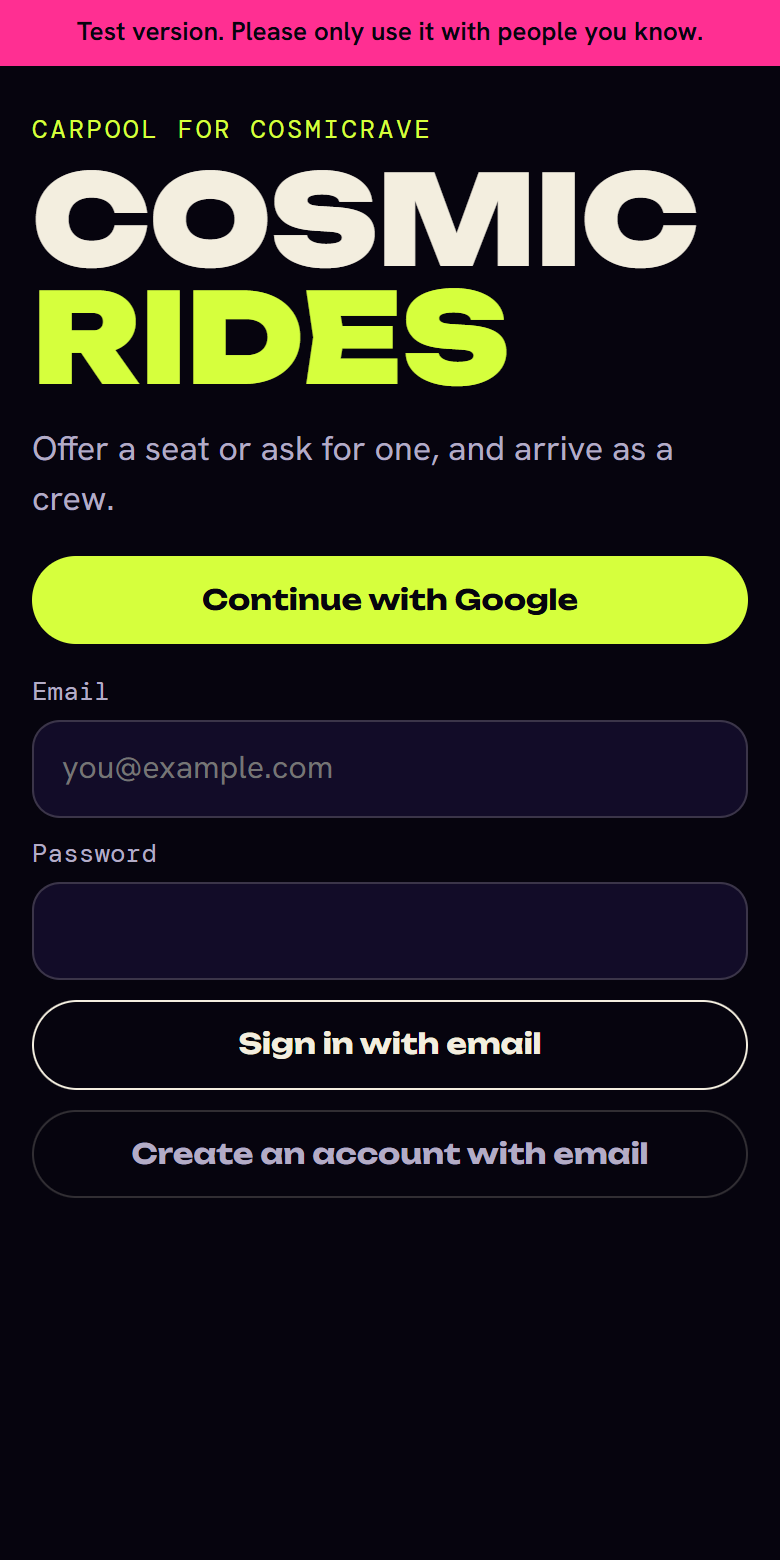
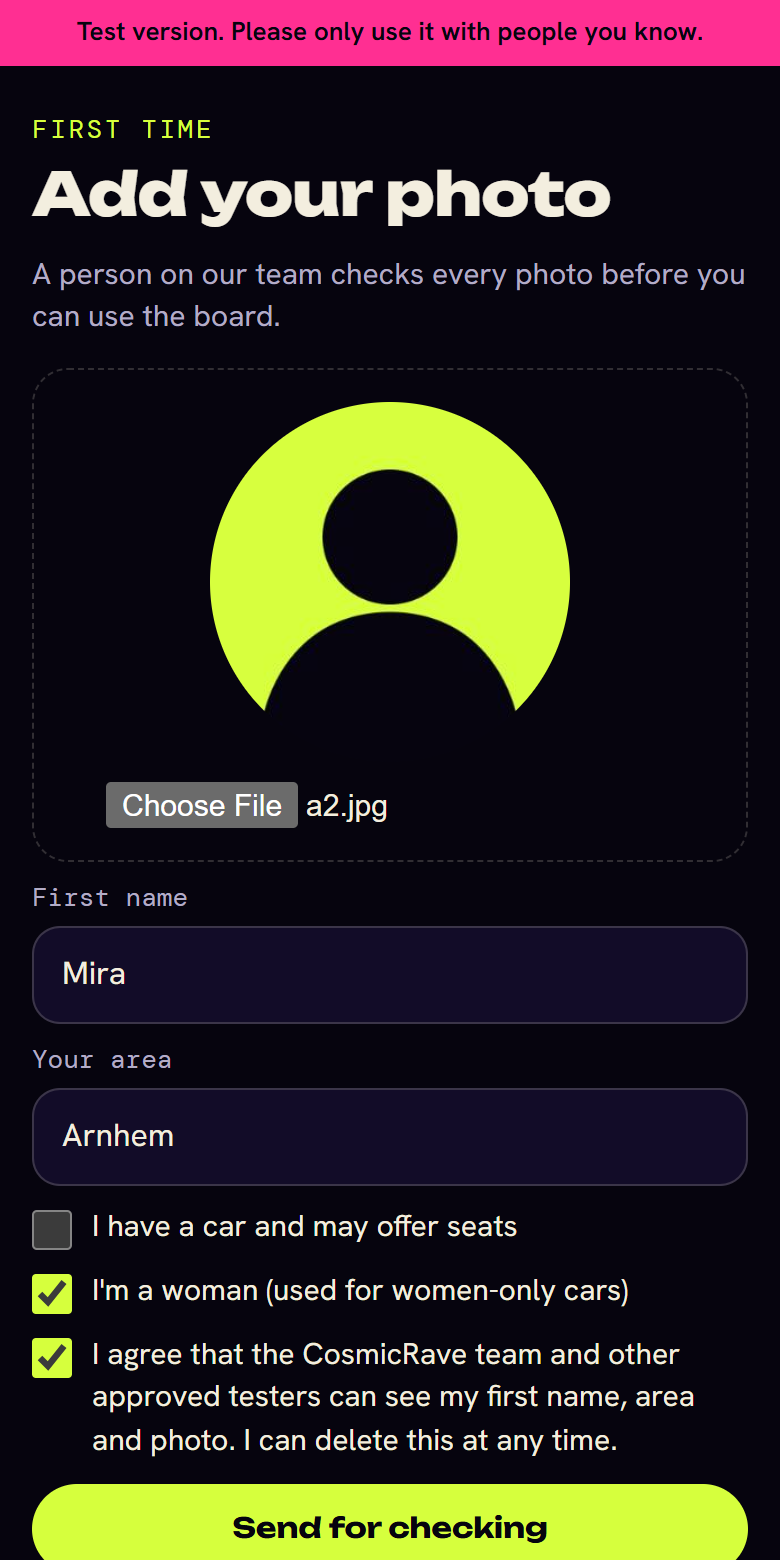
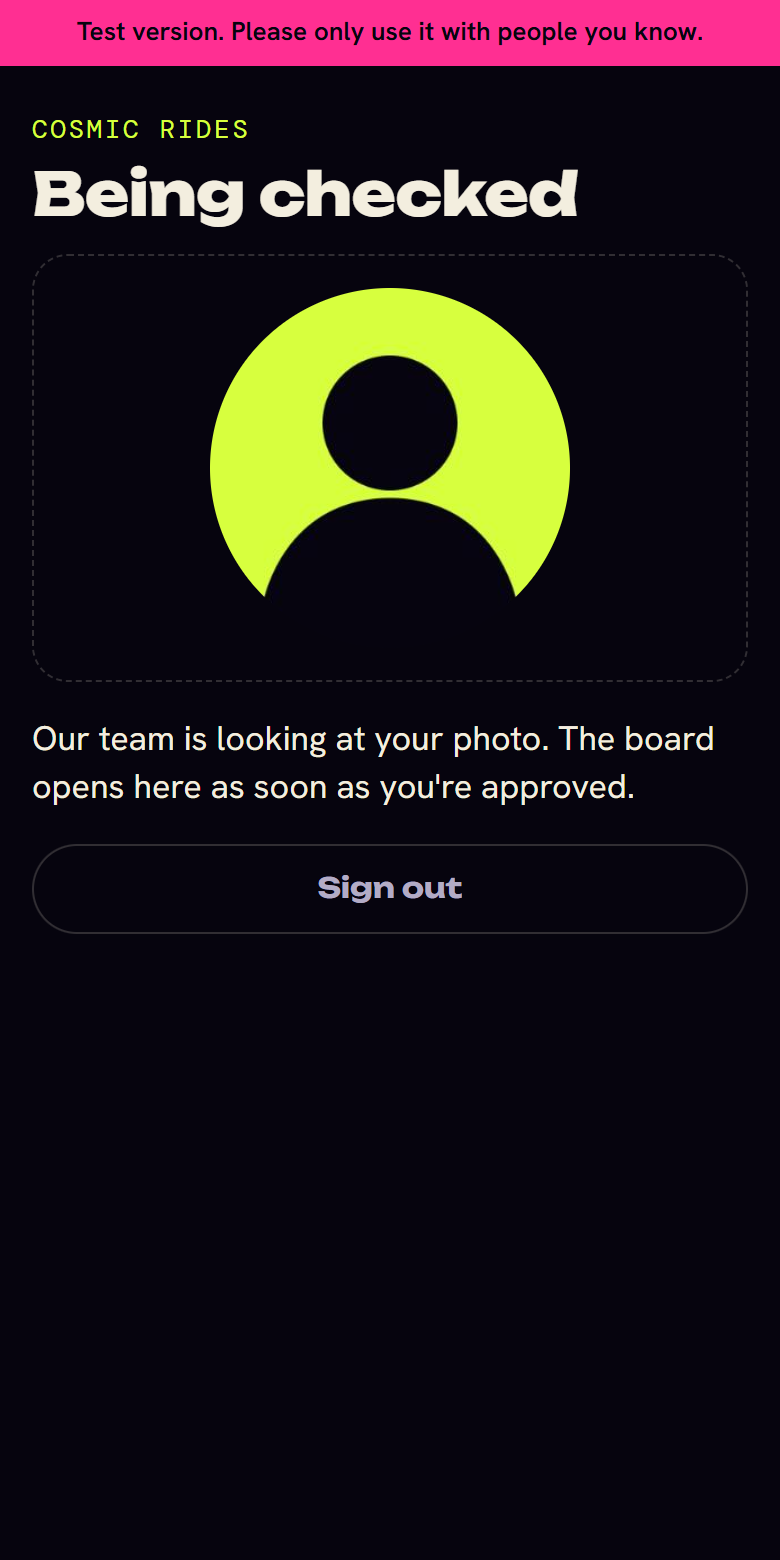
The people and photos in these screenshots are made-up examples.
If you need a ride
Start by looking for a ride on the board. If nothing fits, ask for a seat and let drivers come to you.
Option 1: request a seat on a ride
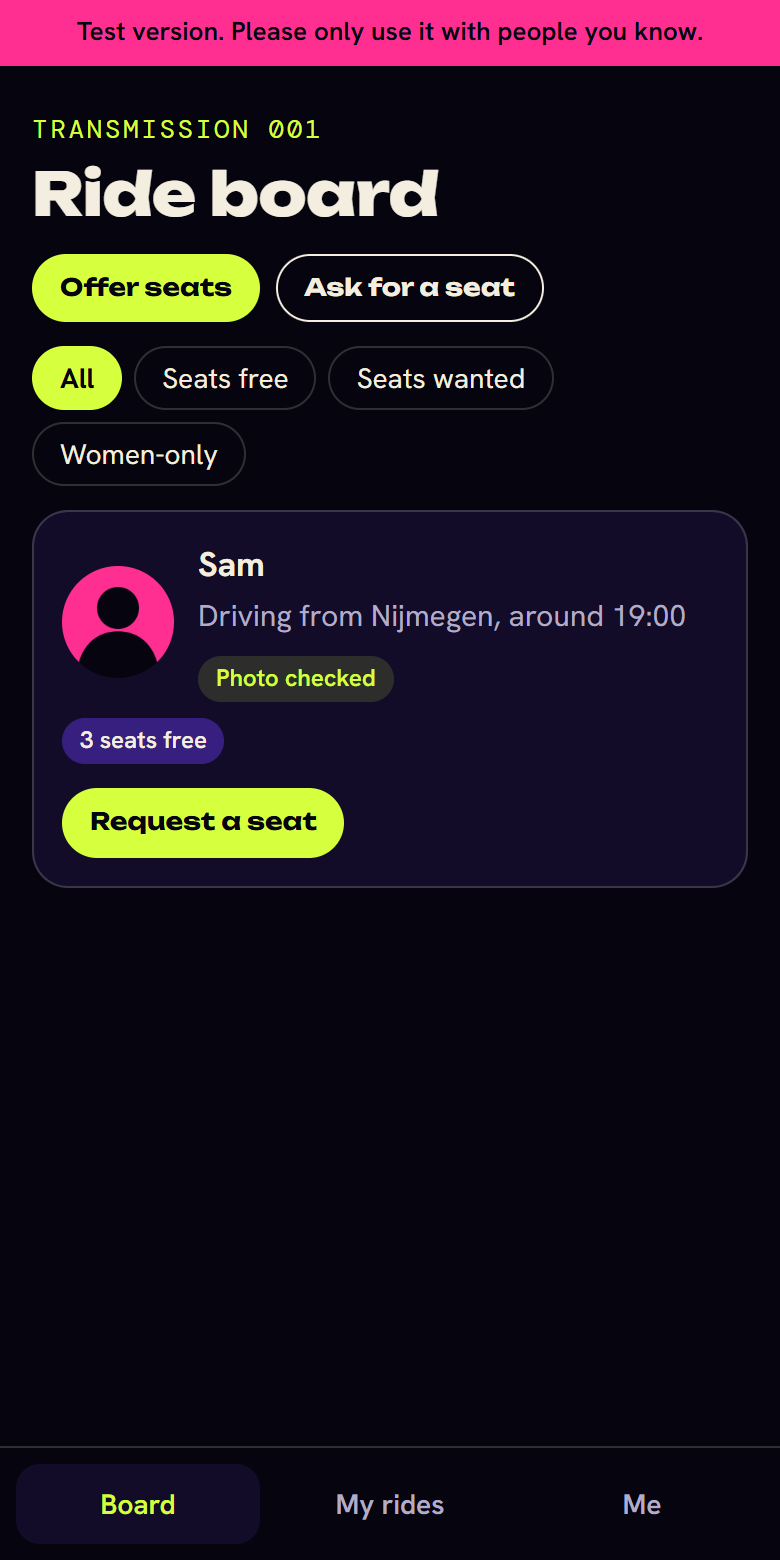
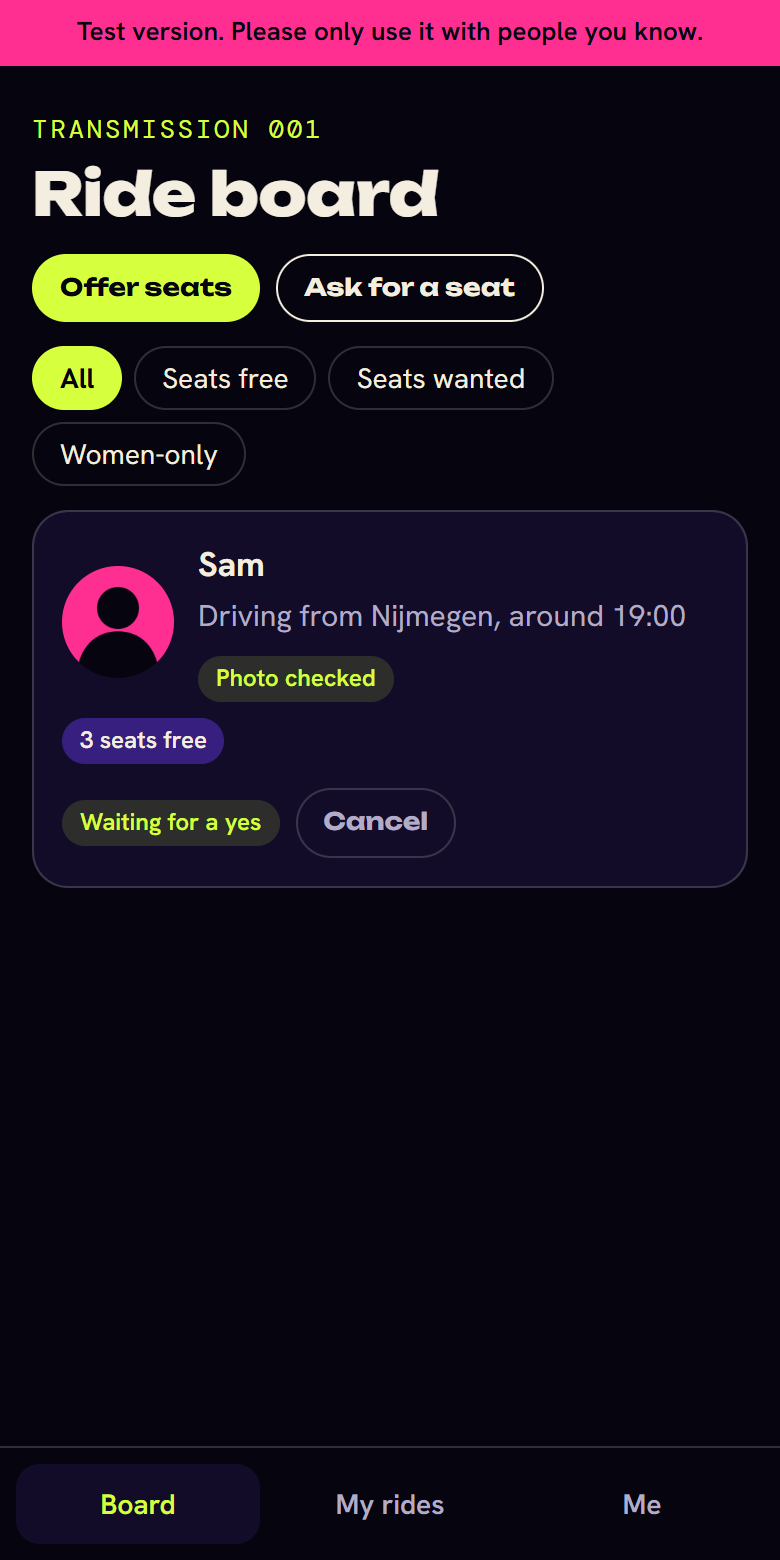
- Open Board. Each ride shows the driver’s photo, first name, area, departure time and free seats.
- Use Seats free to see only drivers, or Women-only to see only women-only cars.
- Press Request a seat. The button changes to Waiting for a yes, and you can still Cancel.
- The driver gets an email and decides.
- If the driver accepts, you get an email and Open your crew appears on the ride. If not, the ride shows Not this time.
Option 2: ask for a seat
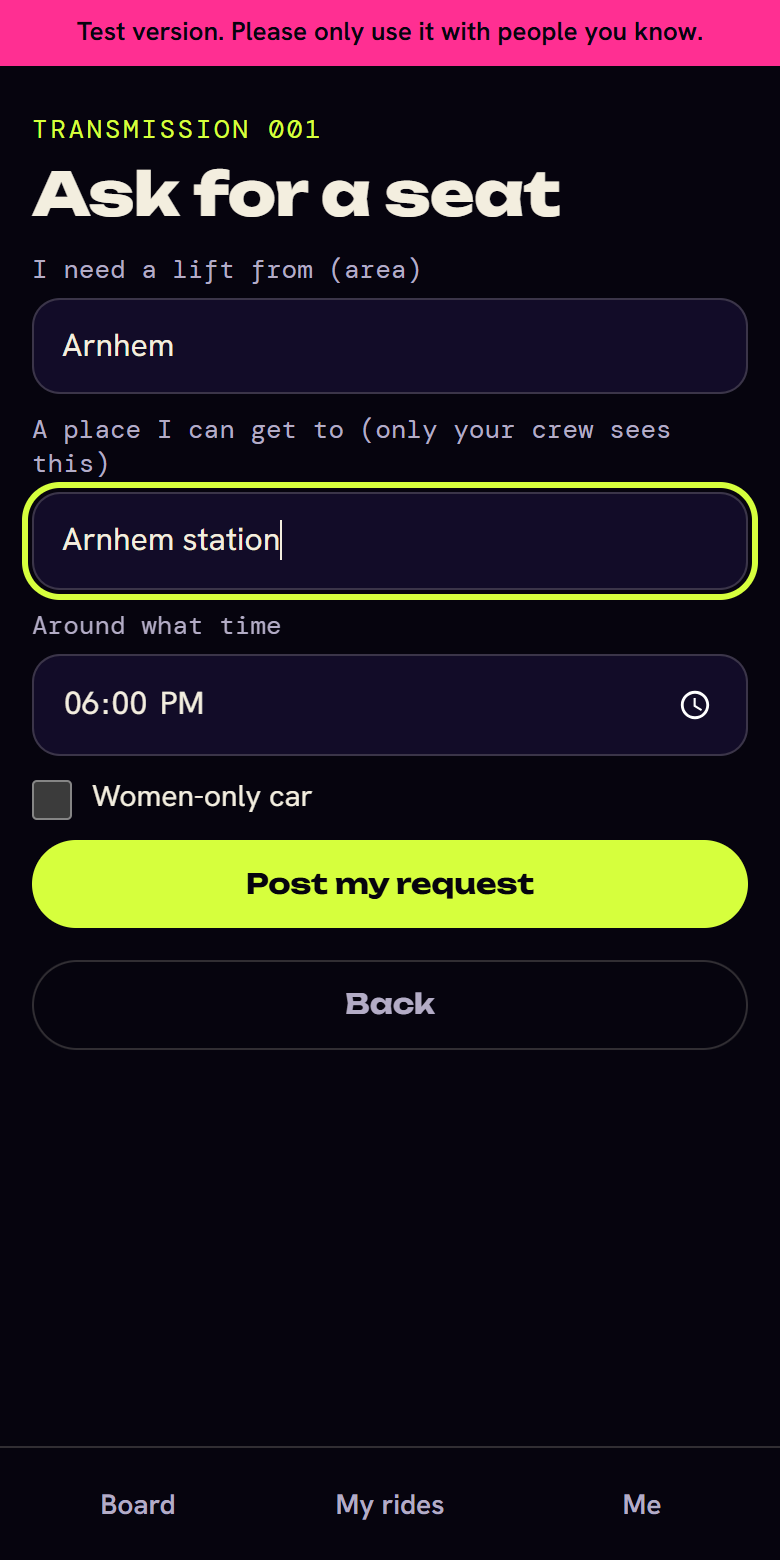
- On Board, press Ask for a seat.
- Fill in the area you need a lift from, a public place you can get to, and around what time.
- Press Post my request. It appears on the board for people with a car.
- When a driver offers you a seat, you get an email.
- Open My rides. Under Waiting for your yes you’ll see the driver’s photo.
- Press Accept to form your crew, or Not this time to say no. You don’t need to give a reason.
If you have a car
Post the seats you have free, or pick up someone who has already asked. You need I have a car turned on in your profile for both.
Option 1: offer your seats
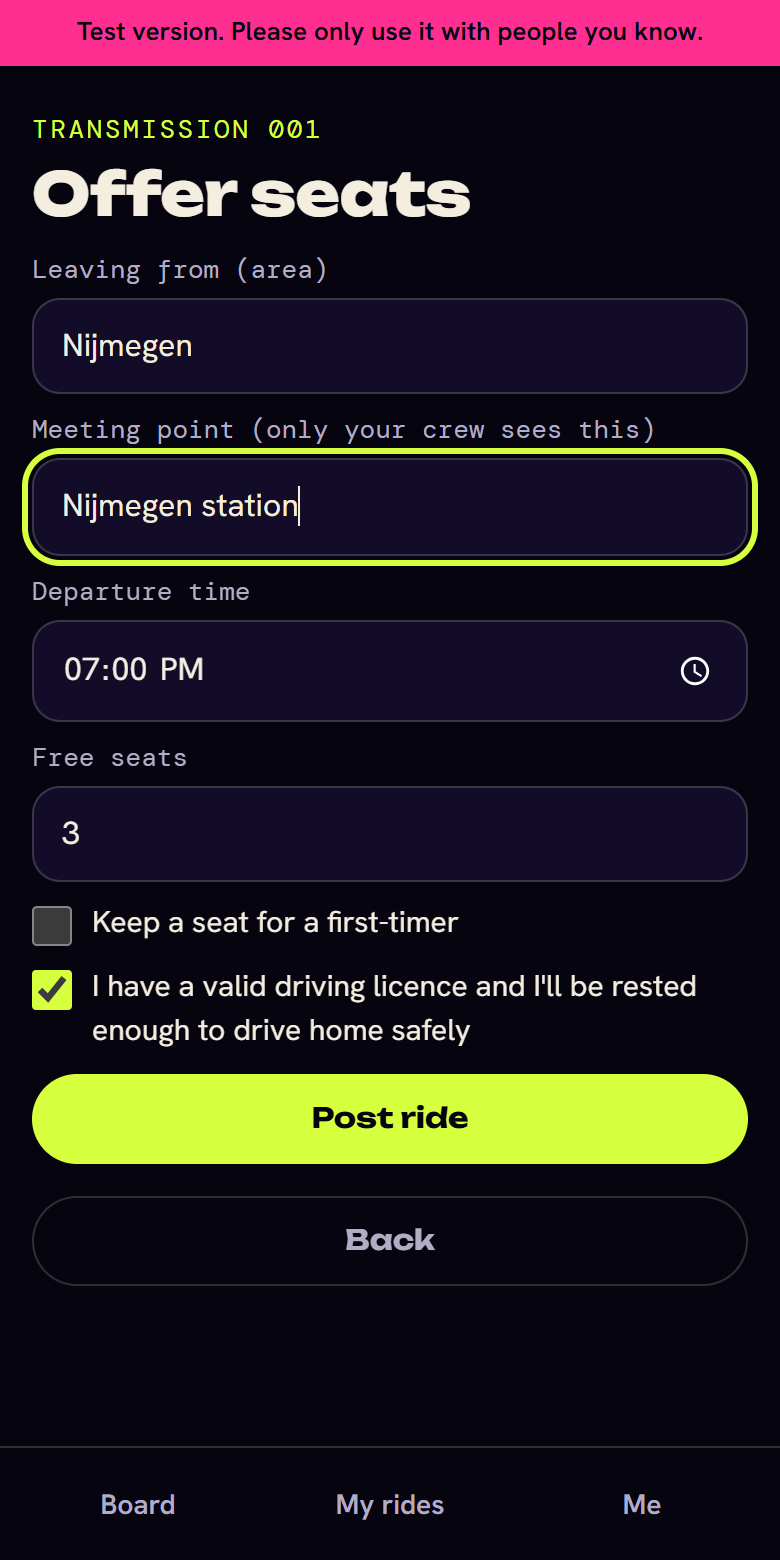
- On Board, press Offer seats.
- Fill in the area you leave from, a public meeting point, your departure time and your free seats. Only your crew ever sees the meeting point.
- Optionally tick Keep a seat for a first-timer. Women can also make it a Women-only car.
- Tick that you have a valid driving licence and will be rested enough to drive home safely.
- Press Post ride.
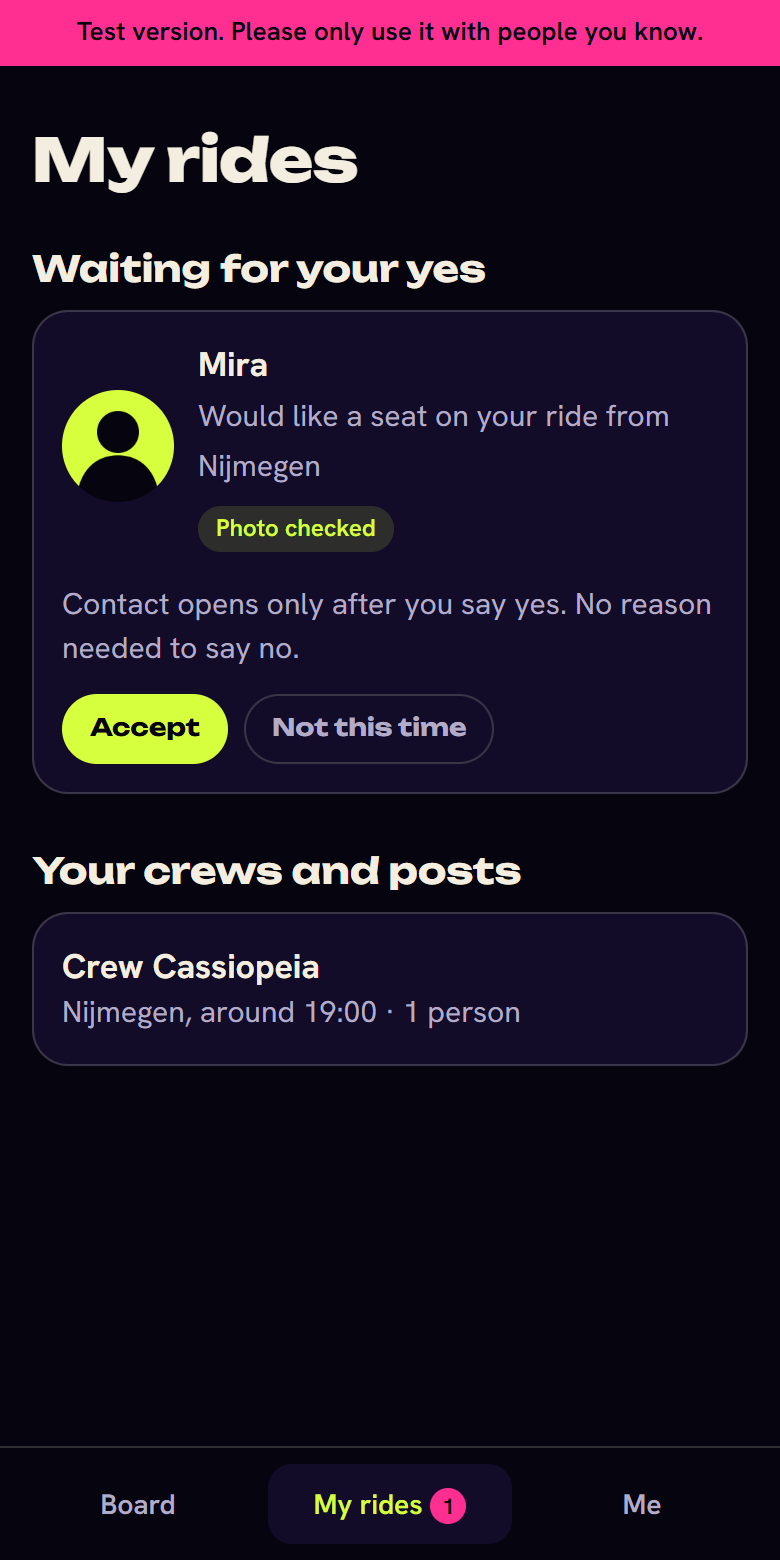
- When someone requests a seat, you get an email and a number appears on My rides.
- Under Waiting for your yes, check the person’s photo, then press Accept or Not this time. You don’t need to give a reason.
Your ride leaves the board by itself when all seats are taken.
Option 2: pick up someone who asked
- On Board, choose Seats wanted.
- Find someone near your route and press Offer a seat.
- They get an email and see your photo. The button shows Waiting for a yes.
- If they accept, you get an email and Open your crew appears on the post.
Your crew
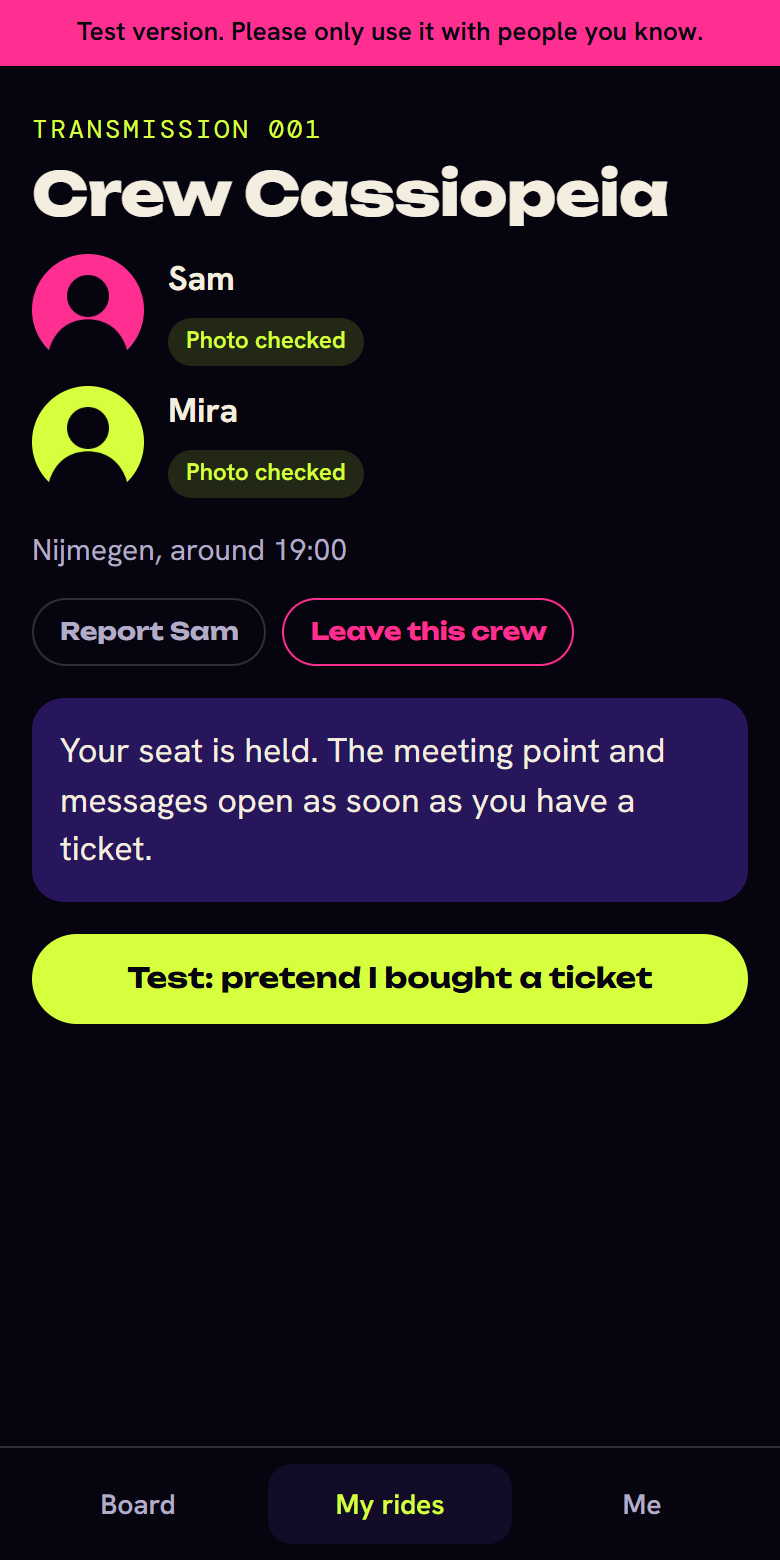
Once both people have said yes, the car becomes a crew with a cosmic name, such as Crew Andromeda. Find it under My rides.
Your ticket opens the crew
The meeting point and messages only open once you have a ticket. If you were accepted without one, your seat is held for 48 hours and the crew page shows exactly until when.
If the 48 hours pass without a ticket, you get an email and the seat goes back on the board. You can request a seat again later.
In this test version, press Test: pretend I bought a ticket on the crew page or under Me.
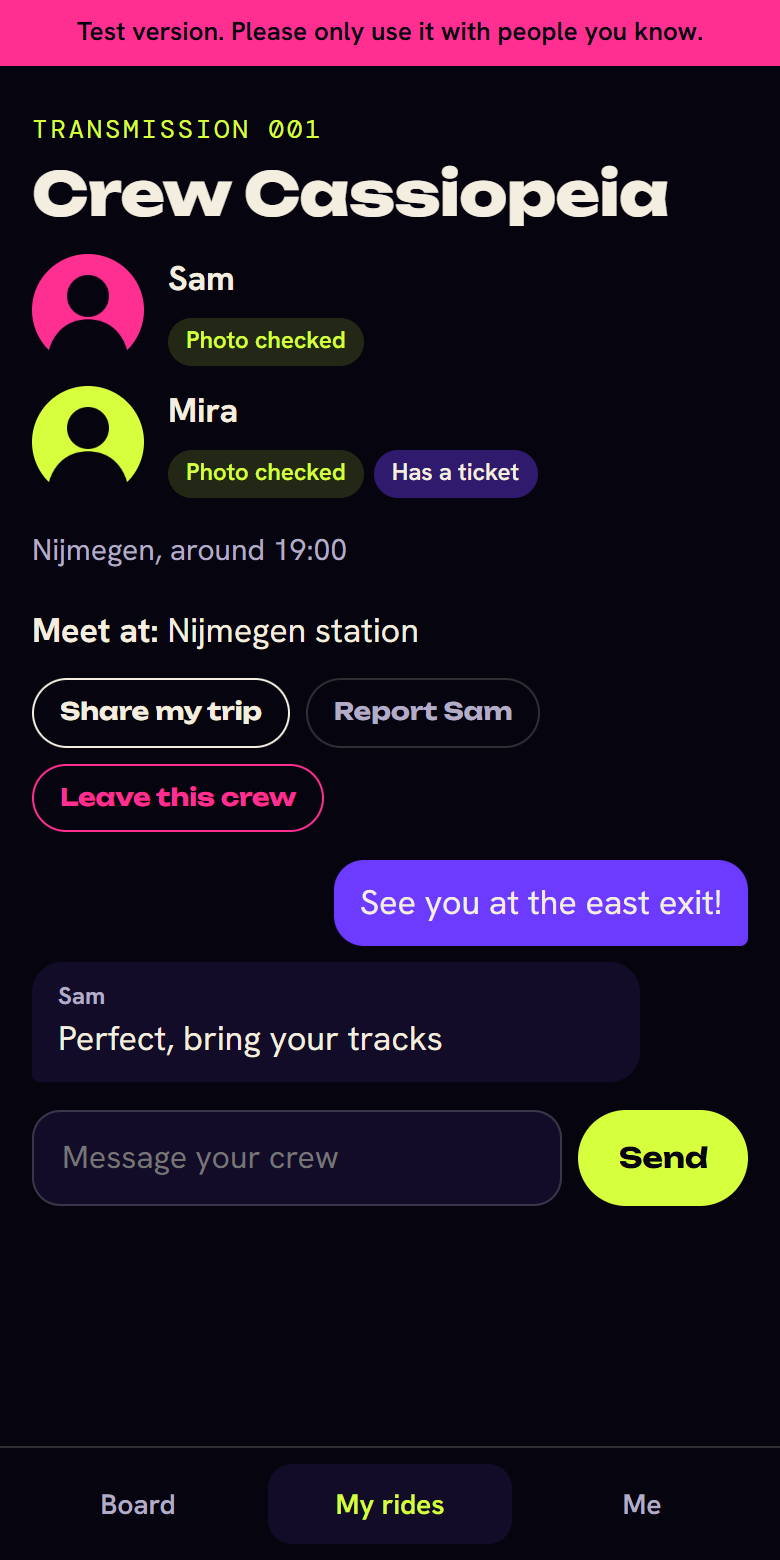
What you can do in a crew
| Action | What it does |
|---|---|
| See Meet at | Shows the meeting point, for crew members with a ticket |
| Send a message | Everyone in the crew with a ticket can read it |
| Share my trip | Sends a friend your driver’s first name, the meeting point and the time |
| Report | Tells the CosmicRave team privately about someone in your crew |
| Leave this crew | Removes you and opens your seat again |
| Cancel ride | For the driver: cancels the ride and emails the crew |
| Remove my request | For someone who asked for a seat: takes the request down and emails anyone in that crew |
Staying safe
Everyone on the board has had their photo checked by a person on the CosmicRave team. That check confirms a photo, not who someone is or how they drive, so always use your own judgment.
- No home addresses. Others see your area, and your crew sees a public meeting point.
- Both people say yes. Messages and the meeting point stay closed until then, and you never need a reason to say no.
- Women-only cars. Women can offer them or ask for them. Only people who ticked I’m a woman can join.
- Share my trip. Send a friend the details from your crew page.
- Report. Reports go straight to the team, and the person isn’t told who reported them. The team can pause an account, which removes that person’s access at once.
- Delete your data. Under Me, press Delete my profile and photo.
In an emergency, call 112.
For the CosmicRave team
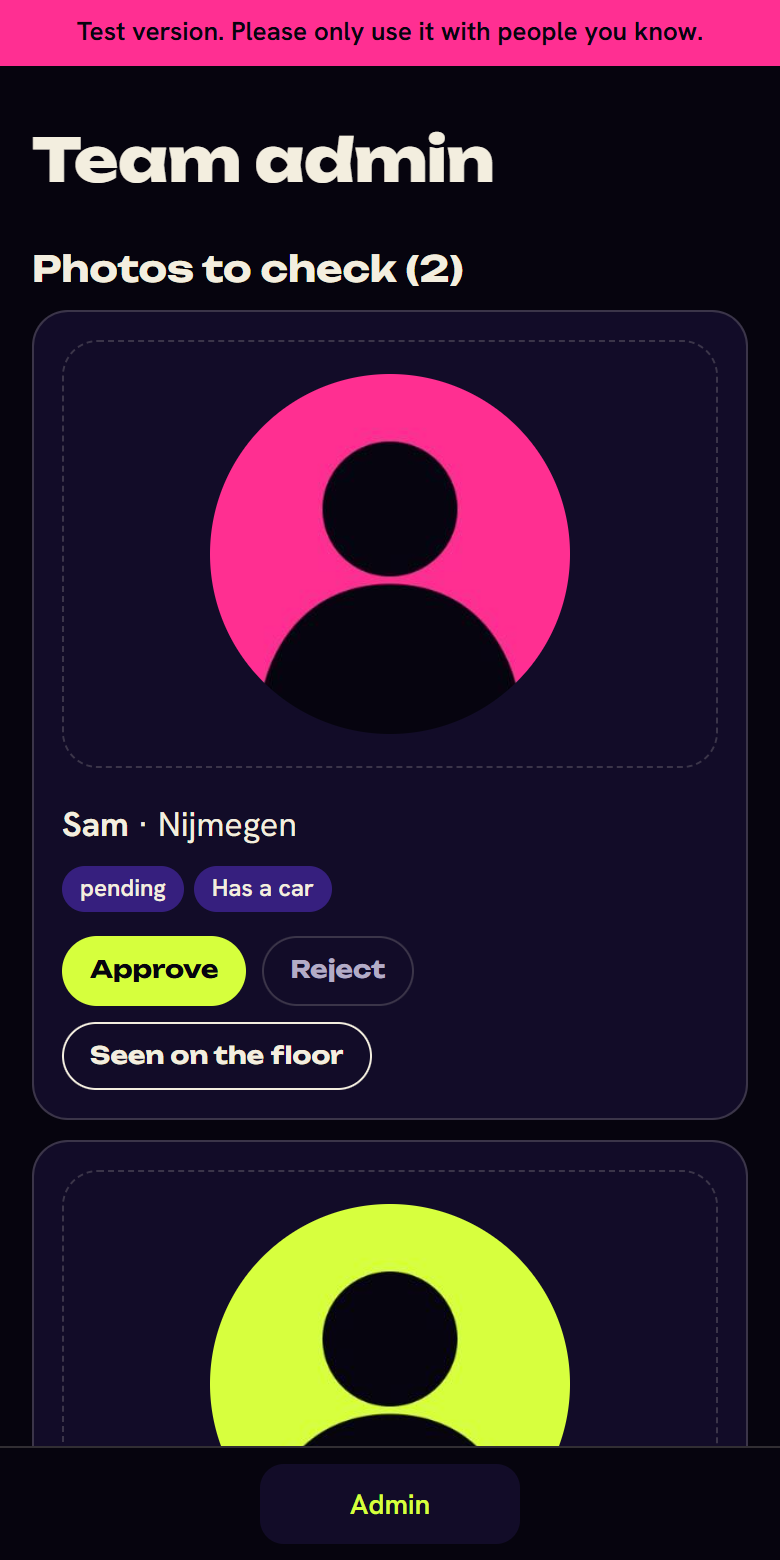
Sign in with Google using the CosmicRave admin account, then open the Admin tab. New photos appear there straight away.
| To do this | Press | What happens |
|---|---|---|
| Let someone in | Approve | The board opens for them at once |
| Ask for a better photo | Reject | They’re asked to add another photo |
| Mark someone you’ve met | Seen on the floor | A badge appears on their profile |
| Handle a report | Pause [name] | They lose access at once |
| Close a report | Resolved | The report is removed from the list |
| Let a paused person back | Approve | Their access returns |
Anyone who changes their first name, photo or women-only setting comes back to Photos to check.
What the test version doesn’t do yet
- Tickets are simulated. A test button stands in for buying one, with no link to a shop or Hipsy yet.
- Email only. There are no phone notifications.
- One event. Everything is for Transmission 001.
- English only. Dutch and German come later.
- No thank-you notes or crew playlists. The explainer page shows them as plans.
Emails currently come from noreply@ecstaticoracle.dance, so check your spam folder the first time.